
Blog
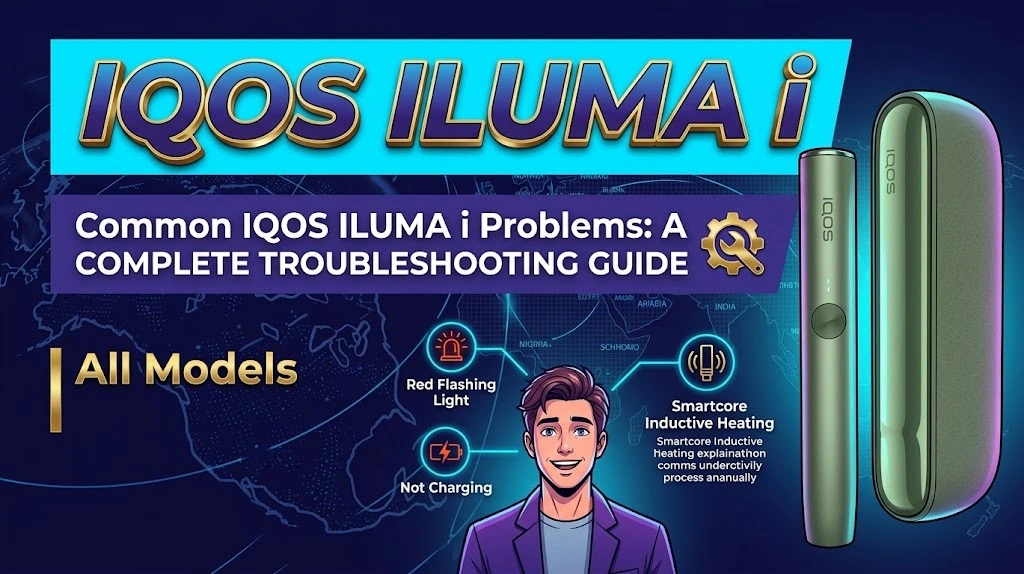
Common IQOS ILUMA i Problems: A Complete Troubleshooting Guide

For adult users only. IQOS ILUMA i heats TEREA sticks that contain nicotine, which is addictive. Heated tobacco products are not risk-free, and the World Health Organization has stated that there is currently no evidence they are less harmful than other tobacco products.
Even a well-made device can act up now and then. A holder that won’t switch on, a light that keeps blinking, or a battery that drains faster than you expected can all spoil your day. Most IQOS ILUMA i problems come down to a handful of everyday causes: charging contacts that need cleaning, a pocket charger that is low on power, a device that is too hot or too cold, or a device that simply needs a reset.
What Are the Most Common IQOS ILUMA i Problems?
Users typically report minor software or physical maintenance issues. The most frequently encountered problems include:
- Unresponsive Touch Screen: The ILUMA i FlexPuff or status display fails to respond or remains dark.
- Charging Failure: The Pocket Charger or single-piece device fails to charge when plugged into a USB-C source.
- Red Flashing Indicator: A persistent red light signals a system glitch, improper placement, or thermal warning.
- No Heating Session: The Holder does not initiate heating after inserting a TEREA stick.
- Battery Degradation: Reduced charge capacity or unexpected shutoffs during use.
IQOS ILUMA i Not Charging: Causes and Possible Solutions
If your IQOS ILUMA i is not charging, the issue often involves power delivery hardware rather than a broken internal battery.
- Inspect Cable and Adapter: Always charge your Pocket Charger using an official IQOS USB-C power adapter and high-quality cable. Low-voltage phone chargers or computer USB ports may provide insufficient current, resulting in slow or interrupted charging cycles.
- Clean Power Contacts: Dust and pocket lint often gather inside the USB-C port or around the metallic contact points between the Holder and Pocket Charger. Wipe these dry contacts gently with a dry microfibre swab.
- Check Pocket Charger Seating: Ensure the Holder is aligned correctly inside the Pocket Charger door. If the contacts fail to meet properly, the Holder will not draw power.
- Allow Initial Power-Up Time: If your device is completely drained (deep discharge), plugging it in might not trigger an immediate display light. Keep it plugged into a wall outlet uninterrupted for at least 20 minutes before checking the status again.
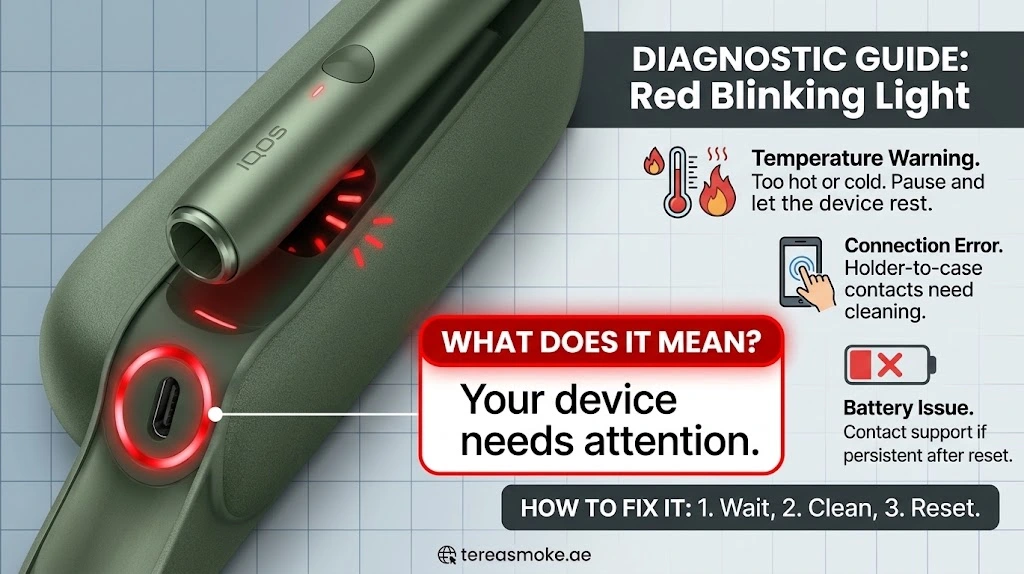
IQOS ILUMA i Red Light Blinking: What Does It Mean?
Seeing a red light on your Pocket Charger or Holder indicates a temporary error condition that pauses normal operation.
- Software or System Freeze: A rapid flashing red light often points to a minor firmware glitch. Performing a system reset usually clears this status immediately.
- Thermal Protection Mode: IQOS devices operate safely between 0°C and 40°C. In the UAE climate, leaving your device in a hot vehicle or direct sunlight can trigger safety cutoffs. Move the unit to a climate-controlled room and wait 15–20 minutes to let it stabilize within normal temperatures.
- Magnetic Interference: Nearby magnetic sources (such as laptop speakers, magnetic phone mounts, or wallet cases) can briefly disrupt internal sensors. Keep the device clear of magnetic accessories.
IQOS ILUMA i Screen Not Working
The interactive touch screen is a distinguishing upgrade on the IQOS ILUMA i series. If the screen freezes, displays partial lines, or refuses to turn on:
- Charge Status: Display screens require a baseline charge to power up. Connect the Pocket Charger to a live power source.
- Screen Error Codes: If the display shows code errors (such as an “E” symbol or flashing dashes), it usually indicates an interrupted firmware update or temporary sensor misalignment.
- Perform a Reset: Holding the primary button while the device is in the charger restarts the screen operating system.
- Check for Physical Damage: Cracks on the screen or signs of fluid exposure can cause touch elements to fail permanently.
IQOS ILUMA i Not Heating TEREA Sticks
Unlike older blade-based IQOS models, the ILUMA line utilizes smart induction heating (SMARTCORE INDUCTION SYSTEM™). It contains no internal heating blade, eliminating blade breakage concerns.
If your IQOS ILUMA i is not heating:
- Verify Stick Compatibility: The ILUMA i only works with TEREA smartcore sticks containing an internal metal heating element. Browse our full selection of TEREA Stick Flavors in Dubai to ensure you are using genuine compatible sticks. Older HEETS sticks or third-party alternatives will not trigger the induction circuit.
- Check Stick Insertion: Insert the TEREA stick firmly to the printed line on the filter without twisting it. Twisting can alter the internal foil position and prevent heating.
- Inspect the Chamber: Use a soft flashlight to inspect the heating chamber. Though cleaning is not required due to sealed stick design, loose paper dust or foreign objects inside the chamber can prevent proper auto-start detection.
- Confirm Holder Battery Status: Check if the Holder status lights indicate at least one remaining experience before initiating a session.
IQOS ILUMA i Battery Problems
Over time, lithium-ion batteries naturally lose operational capacity. However, sudden IQOS ILUMA i battery problems are often manageable:
- Shortened Usage: If your Holder powers down earlier than expected, ensure you are allowing the Holder to fully charge inside the Pocket Charger between uses.
- Battery End-of-Life Warnings: If the screen flashes horizontal lines continuously (typically 8 times), the internal battery capacity has reached terminal wear. This indicates that the Holder can no longer retain sufficient charge for complete sessions and requires professional inspection.
IQOS ILUMA i Not Working or Not Turning On
When your IQOS ILUMA i is not working, work from the simplest cause to the most complex one.
Holder lights not turning on
IQOS’s ILUMA i guidance for a holder that won’t light up after you swipe the screen is:
- Check that the pocket charger has at least one solid white light, which shows it has enough charge for at least one experience.
- Clean the contacts between the holder and the pocket charger.
- Place the holder back in the pocket charger, correctly seated, and leave it until at least one of the holder lights on the pocket charger turns solid white.
- Take the holder out and swipe up across the whole screen.
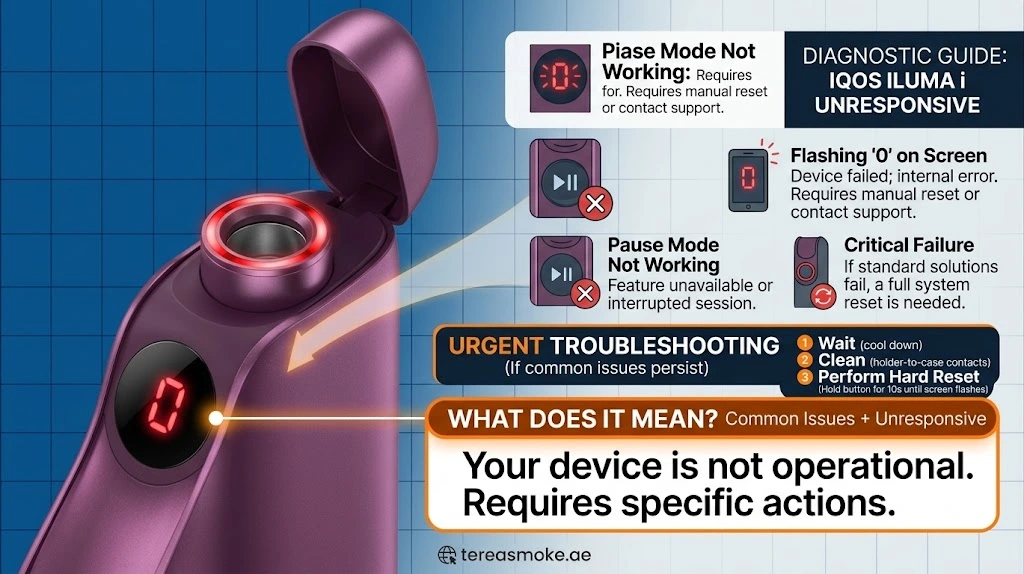
| Common Issue | Quick Fix |
|---|
| Flashing “0” on Screen | Return the holder to the Pocket Charger and wait until at least one holder light turns solid white. |
| Pause Mode Not Working | Swipe down across the full touch screen. Pause mode lasts up to 8 minutes. |
| Still Not Working? | Try the official device reset. If the holder remains unresponsive, contact IQOS Support. |
How to Reset the IQOS ILUMA i Device
Knowing how to reset IQOS ILUMA i devices clears temporary firmware crashes, screen freezes, and false error lights. Note that procedures vary slightly depending on whether you own a premium flagship device like the IQOS ILUMA PRIME or a compact all-in-one unit like the IQOS ILUMA ONE.
For IQOS ILUMA i & ILUMA i PRIME :Two-Piece System
- Place the Holder fully inside the Pocket Charger.
- Press and hold the Pocket Charger Button for 10 seconds.
- Continue holding until all status lights turn off, blink white twice, and turn back on.
- Release the button; the system reset is complete.
For IQOS ILUMA i ONE :All-in-One Device
- Ensure no TEREA stick is inside the chamber.
- Press and hold the single main Device Button for 10 seconds.
- Keep holding until the status lights dim and blink white twice.
- Release the button to complete the restart.
When Should You Contact IQOS Customer Support?
Contact IQOS customer support or visit an official IQOS store if:
- The red light keeps blinking after a reset
- The device still won’t charge after cleaning the contacts and using approved accessories
- The screen stays unresponsive after charging and resetting
- The device won’t heat even though your sticks and insertion are correct
- Battery life has dropped sharply and doesn’t recover
Stop using the device immediately if it:
- Is cracked, dented or otherwise damaged
- Gets unusually hot
- Looks swollen or deformed
- Smells burnt or smokes
- Shows signs of electrical failure, such as sparking or a damaged port
Frequently Asked Questions About IQOS ILUMA i Problems
Why is my IQOS ILUMA i not charging?
It is usually due to using an incompatible power adapter, dirty USB-C port contacts, or an improperly seated Holder inside the Pocket Charger. Try cleaning the contacts gently and charge with an official IQOS adapter.
What does a blinking red light mean on IQOS ILUMA i?
A blinking red light signals a system freeze, an interrupted charge, magnetic interference, or exposure to extreme hot or cold temperatures outside the 0°C–40°C range.
Why is my IQOS ILUMA i not heating?
This typically occurs if the TEREA stick is not inserted properly, if an incompatible stick type (like older HEETS) is inserted, or if the Holder battery is depleted.
Can I reset my IQOS ILUMA i device?
Yes, you can perform a soft reset by placing the Holder into the Pocket Charger and holding the charger button for 10 seconds until the lights blink white twice.
Why is my IQOS ILUMA i screen not working?
The touch display may be frozen due to a temporary firmware error or a fully drained battery. Charge the device for 20 minutes and complete a 10-second button reset.
Which TEREA sticks are compatible with IQOS ILUMA i?
The IQOS ILUMA i works exclusively with TEREA smartcore sticks designed for ILUMA series induction heating. Older blade-style sticks or non-induction sticks will not work.
When should I contact IQOS support?
Contact official support if your device flashes red persistently after resetting, exhibits battery swelling, overheats excessively, or shows physical damage.
Conclusion
Understanding how to address minor IQOS ILUMA i problems keeps your device running smoothly and protects its operational lifespan. In most instances, letting the unit cool down, cleaning power contacts, or applying a 10-second reset will resolve everyday charging and light indicators. If hardware glitches persist after these checks, reach out to official IQOS support for professional diagnostic evaluation.